Create a task
Hand an agent a piece of work that runs in the background and follow its progress.
A task is work an agent does in the background while you do something else. A chat is for a conversation; a task is for longer work with several steps.
Creating one
- Open Tasks (or select New task in the sidebar). On the phone the button is on the home screen.
- Describe in the box what needs doing. The more precisely you name the result, the better the answer. Under the box there are ideas to start from.
- Choose the agent that will do the work.
- If you need to, choose an environment (the cloud by default) and a priority.
- Select the arrow to send the task.
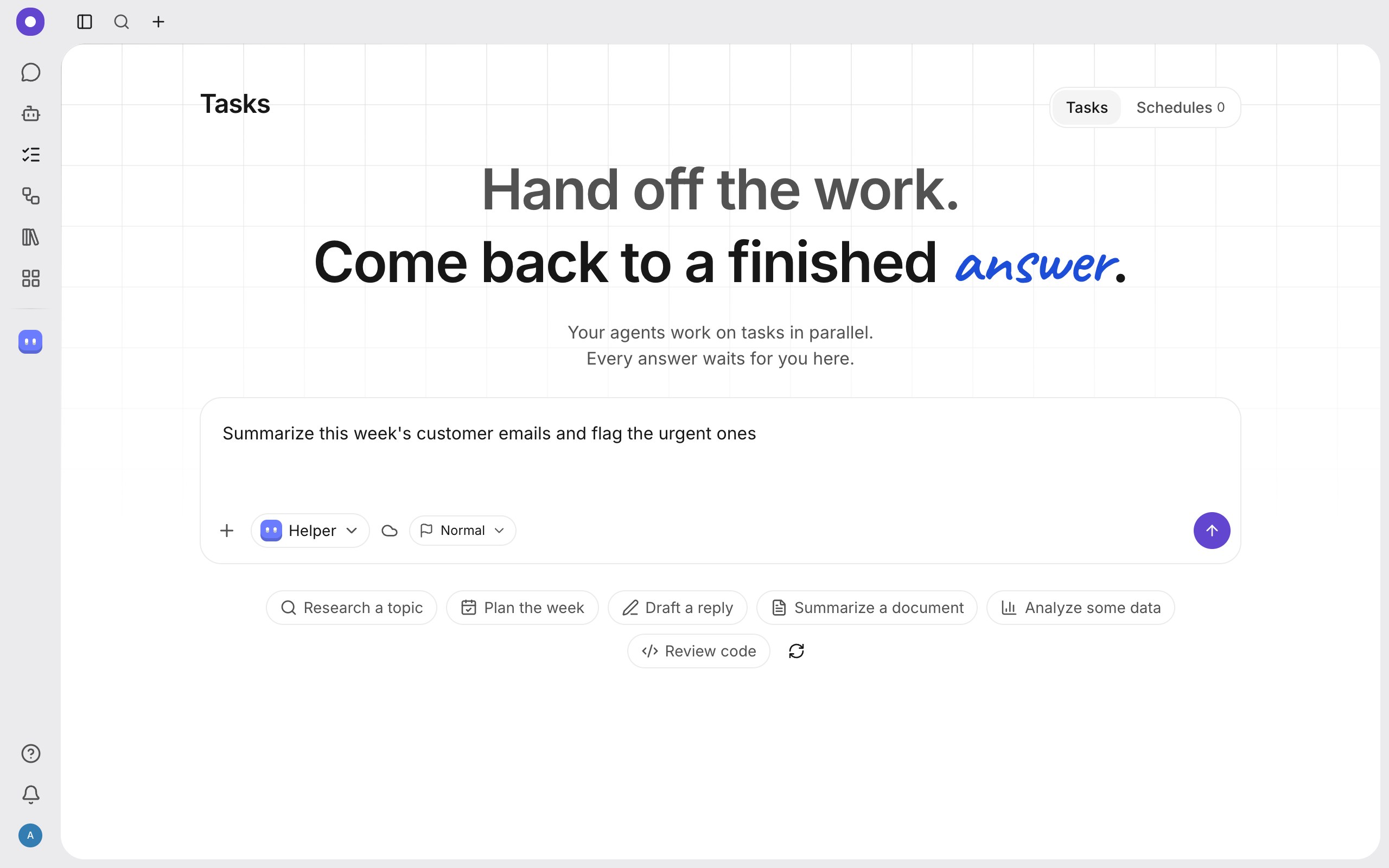
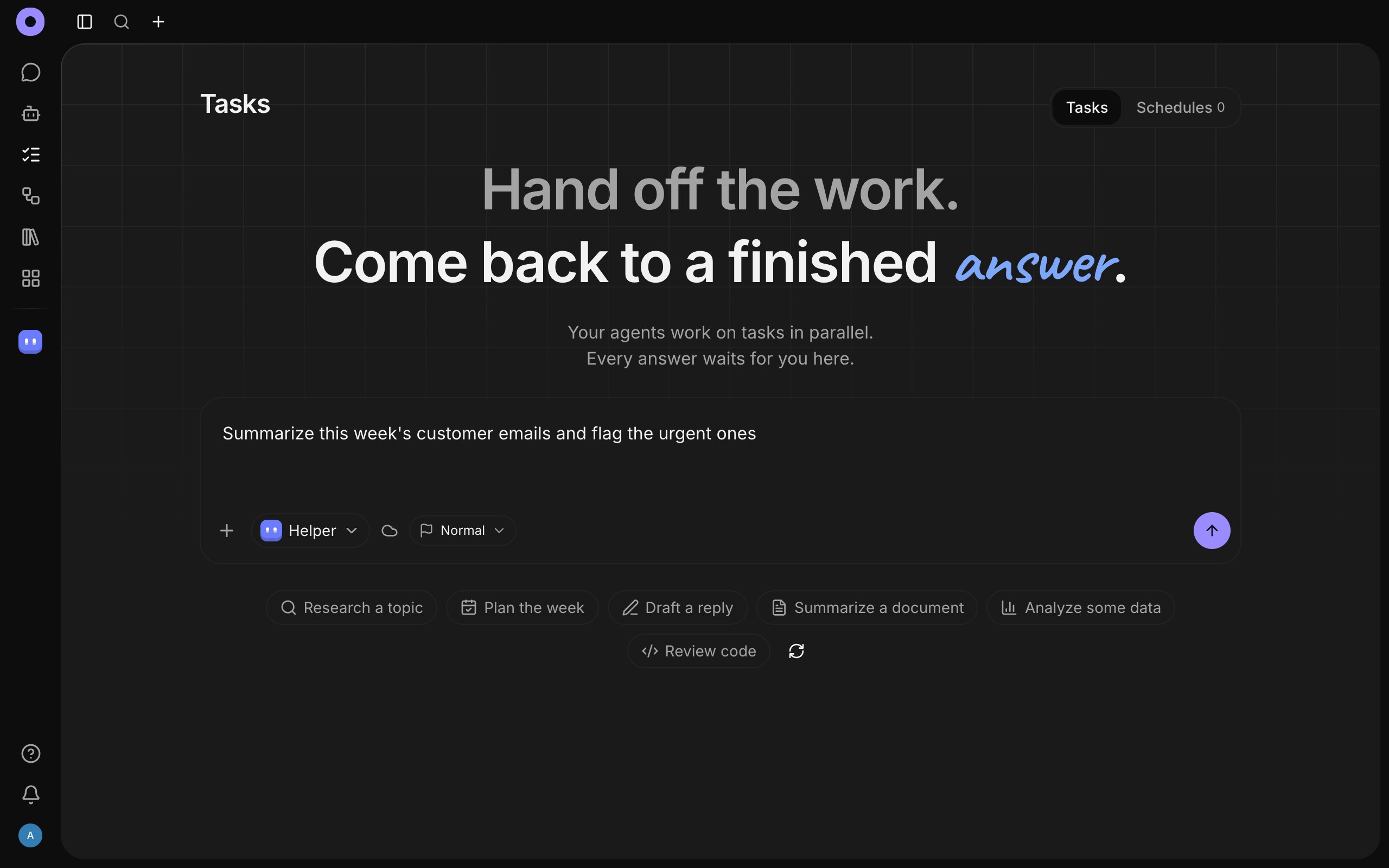
The + button on the left attaches an image or a file to the task.
How it runs
The agent makes a plan, splits the work into subtasks when needed and goes step by step. The status shows in the list: running, waiting for your answer, completed or failed. Open the activity log to follow the progress and leave a comment.
When the agent asks permission
If the agent needs your decision, for example to send emails to customers, the task moves to "Waiting for your answer" and you get a notification. Approve or reject the action and the work goes on.
Tips
- Give one goal per task. For several different jobs, create several tasks.
- Tools and connectors are attached to the agent, not to a single task: integrations.
- If a task should repeat, add a schedule.
- Tasks spend the workspace's credits, and how many can run at once depends on your plan.
What next
Create a schedule or join the steps into a workflow.